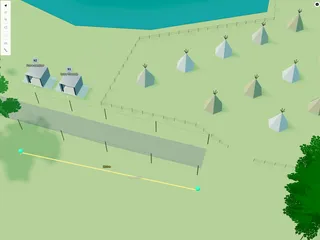
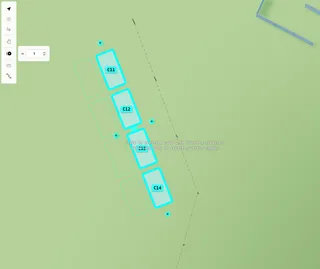
Linear duplicate — copy items in a row on your map
Turn on Linear duplicate, set the gap, then click a + for one copy or drag a + to keep creating copies in a line.

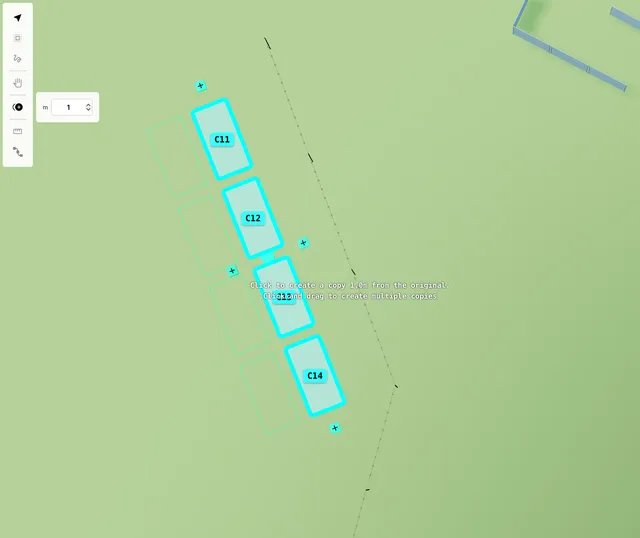
Linear duplicate copies plots, stages, and other placeable items in a straight line — useful for rows of stalls, toilets, or decorations. Planning Map only.
Site shapes, paths, fences, labels, and similar drawn lines are not duplicated this way. If a vendor on a plot is selected, the plot is what gets copied (with the vendor).
1. Turn it on
Select one or more eligible items on the map.
On the toolbar, click Linear duplicate (duplicate icon). A gap field appears next to the button (metres).
2. Set the gap
Use the number field to set the centre-to-centre spacing between copies. Drag the value or type a number.
3. Add copies with the + handles
+ handles appear on the sides of the selection (when the cursor is near it):
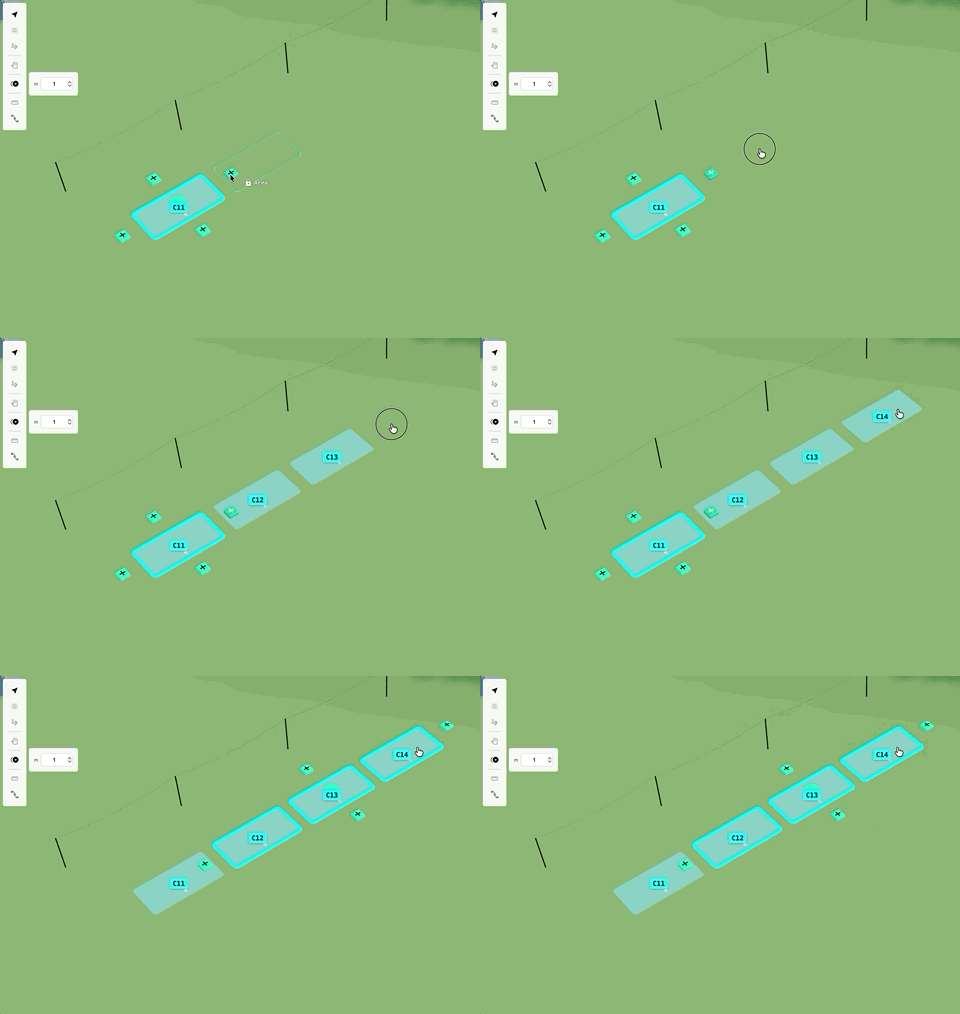
- Click a + — add one copy in that direction at the current gap
- Drag a + — keep creating copies as you drag further in that direction. A ghost preview shows how many will fit; release when you have enough
You can keep dragging out to add more, or drag back to remove copies you have not released yet. New copies stay selected when you finish.
4. On an alignment path
If items are locked to an Alignment path, linear duplicate steps along the path (and keeps distribute settings). See Alignment paths for snapping and distribute modes.
5. Turn it off
Click Linear duplicate again, or switch back to Move / another tool.
Tip: You can also Alt+drag a selection to duplicate along the drag without turning the tool on.